
Slow broadband can be frustrating, but there are still practical steps many households can take to improve performance and get a clearer picture of what's going on.
Simple changes - such as checking speeds properly, improving Wi-Fi setup, or using a wired connection - can often make a noticeable difference, especially on modern home networks.
In some cases, bigger changes like upgrading to full fibre or switching to a faster deal may be the most effective option. This guide also explains what affects broadband speeds today, including how your connection, router, and wireless environment interact around the home.

At a glance: Improve internet speed - top tips
There are several practical steps you can take to improve broadband and Wi-Fi performance, depending on your connection type and home setup. We explore each in more detail below.
Six ways to improve internet speed for free
- Check your broadband speed properly
Run several tests, ideally using a wired connection, to understand whether slow speeds are caused by the broadband connection itself or by Wi-Fi. Minimum speed guarantees may allow you to exit your contract early if speeds fall short. - Try a wired connection
Plug a device directly into the router using an Ethernet cable and test again. This is the quickest way to rule out Wi-Fi as the cause of slow speeds. - Check your router set-up
Router location, wireless band selection (2.4 GHz vs 5 GHz), channel settings, and firmware updates can all affect performance on modern home networks. - Check for wireless signal disruption
Interference is less common with newer dual-band routers, but electrical items and neighbouring networks can still affect Wi-Fi performance, particularly on the 2.4 GHz band. - Limit unnecessary connections
Smart devices, TVs, phones, tablets, and background connections can all use bandwidth. Disconnecting devices you're not actively using can help improve speeds. - Update device software
Out-of-date operating systems, browsers, or background apps can slow performance, even on a fast connection.
While free fixes are a good place to start, spending a little money can sometimes have the biggest impact.
- Check the microfilter (ADSL / FTTC only)
If you're on an older copper-based connection, a faulty microfilter can affect speeds, and they cost from as little as £6 each. Full fibre connections do not use microfilters. - Upgrade the router
Older routers often struggle with modern usage. A newer model with better Wi-Fi standards and channel management can significantly improve performance. - Add mesh Wi-Fi or a whole-home guarantee
Many providers offer mesh-based Wi-Fi add-ons that promise a minimum speed in every room, usually for a monthly fee of around £10. - Extend the network
As above, mesh systems, boosters, or powerline adaptors can help carry the signal further around larger or harder-to-cover homes. - Get a better broadband deal
Upgrading to full fibre, or switching to a faster package, is often the most reliable way to improve speeds - and can sometimes reduce monthly costs too.
How to improve broadband speeds
There are many factors that can contribute to slow broadband, including some that sit outside your control, such as network congestion or external cabling.
That said, there are still practical steps you can take to improve performance - or at least get a clearer understanding of where the problem lies, whether it's the broadband connection itself or the Wi-Fi around your home.
1. Check your broadband speed
Sometimes slow broadband is caused by a particular website or service struggling, rather than an issue with your own connection. That's why it's worth starting with an independent speed test to understand what you're actually getting.
Choose offers a free broadband speed test tool, and other reputable options include Speedtest.net, Fast.com, and tools provided directly by some broadband providers.
For best results, run at least three tests and take an average, making sure you're not using the connection for anything else at the same time. Using more than one speed test can also help build a more accurate picture.
Where possible, test your speed using a wired Ethernet connection directly to the router. This helps rule out Wi-Fi performance as the cause and shows the speed being delivered to your home.
As well as helping with diagnosis, speed tests matter because many providers offer minimum speed guarantees when you sign up. If your connection consistently falls below that guaranteed minimum and the provider can't fix the issue within 30 days, you may have the right to leave your contract without penalty.
This is set out under the Broadband Speed Code of Practice, introduced by Ofcom, which is subscribed to by providers including BT, EE, Plusnet, Sky, NOW Broadband, TalkTalk, Utility Warehouse, Virgin Media, and Zen Internet.
Advertised broadband speeds are based on what at least 50% of customers receive at peak times, so not everyone will see the headline figure. Minimum speed guarantees help ensure customers still receive a realistic and usable service.
Read more about what broadband speed you need in this guide.
2. Try a wired connection
If you contact technical support about slow broadband, one of the first things you'll usually be asked to do is connect a device directly to your router using a wired Ethernet connection.
Most routers are supplied with an Ethernet cable, so it's worth checking any boxes or drawers for a spare if you don't already have one to hand.
Once connected, run a broadband speed test again and compare the average of several tests with the results you saw over Wi-Fi.
This is the simplest way to work out whether slow speeds are caused by the broadband connection itself or by Wi-Fi performance around the home. If wired speeds are close to what you'd expect but Wi-Fi speeds are much lower, the issue is likely to sit with wireless coverage or interference rather than the line.
It's also an important step because minimum speed guarantees are based on the speed delivered to the router, not on performance over Wi-Fi or internal cabling. Checking wired speeds gives you a clear reference point before moving on to other fixes.
3. Check your router set-up
Most modern routers are designed to work well straight out of the box, but how and where they're set up can still have a big impact on performance - particularly in larger homes or where many devices are connected at once.
Location
Where you place your router matters, especially for Wi-Fi performance.
Routers are often installed next to the main telephone socket or fibre entry point, but that isn't always the best position for spreading signal evenly around the home. Where possible, they can be connected to internal sockets or extension points to improve placement.
If you can, consider the following:
- Place the router somewhere central to help spread the signal more evenly
- Put it on a table or shelf, rather than on the floor
- Keep the area around it as clear as possible
- Avoid placing it directly next to large objects or thick walls
Wi-Fi signals weaken as they pass through walls and solid objects, so even a small change in position can make a noticeable difference.
A clear line of sight between router and device offers the strongest signal, though that isn't realistic for every room or device in most homes.
Wireless settings
Most modern routers are dual-band, meaning devices can connect on either the 2.4 GHz or 5 GHz band.
- 2.4 GHz travels further and penetrates walls better, but is more prone to interference
- 5 GHz is faster and less congested, but has a shorter range
Many routers now manage this automatically using band steering, placing devices on the most suitable band without manual input. However, in some cases - particularly in busy areas with many neighbouring networks - it can help to check which band your devices are using.
Newer routers will usually select the best wireless channel automatically, but manual channel selection can still help in crowded environments if interference is suspected.
Firmware and connected devices
It's also worth checking whether your router has any firmware updates available, as these can improve performance, stability, and security.
Router settings are typically accessed by entering an address such as 192.168.1.1 into a web browser and logging in with the details supplied by your provider.
While you're there, you can also:
- Check security settings
- Review which devices are connected
- Spot any unexpected or rarely used devices that may be using bandwidth in the background
Keeping the router up to date - and knowing what's connected - can help ensure it's performing as efficiently as possible.
4. Check for wireless signal disruptors
On modern home networks, Wi-Fi performance issues are more often caused by congestion from neighbouring networks than by household electronics.
This is particularly common in flats and built-up areas, where many routers are competing for the same wireless channels - especially on the 2.4 GHz band, which is more crowded and has fewer usable channels.
While some household items can still interfere with Wi-Fi, neighbouring networks are usually the bigger factor when speeds fluctuate or drop at certain times of day.
Most modern routers try to manage this automatically by selecting the quietest channel available. However, in busy areas it can still help to check:
- which Wi-Fi band your devices are using (2.4 GHz vs 5 GHz)
- whether the router has switched to a congested channel
- if manual channel selection improves performance
Switching devices to the 5 GHz band, where available, can often reduce interference from nearby networks without needing to move equipment around the home.
If you suspect interference, try running speed tests at different times of day. If performance worsens during busy evening hours, neighbouring network congestion is more likely than a fault with your broadband connection.
5. Limit unnecessary connections
Many homes now have a large number of devices connected to the router at the same time, and not all of them need to be online constantly.
Smart devices can be genuinely useful, but over time it's easy to end up with more connected devices than you actively use - from smart appliances and speakers to TV sticks and picture frames.
While modern routers are designed to handle multiple connections, each device still competes for airtime on the wireless network. In busy homes, that can contribute to slower or less consistent performance, particularly during peak usage.
It's worth checking which devices are connected and asking whether they really need to be online all the time. This might include:
- Smart appliances
- Smart speakers
- Smart lighting systems
- Smart displays or picture frames
- TV sticks and streaming devices
This isn't about switching everything off permanently. Instead, look for devices that are rarely used, in rooms that aren't occupied often, or only needed at certain times of year.
Switching Wi-Fi off on unused devices - even temporarily - can help reduce congestion and make it easier for active devices to perform well. You can test the impact by running speed tests with all devices connected, then again after disconnecting a few non-essential ones.
6. Update device software
The device you're using can also affect how fast and responsive your internet feels.
Whether you're connecting on a computer, tablet, or smartphone, it's worth checking for any outstanding software updates. Updates to operating systems and web browsers often improve performance, stability, and how efficiently data is handled.
It's also a good idea to check for background apps or services that may be using bandwidth without you realising. This can include cloud back-up tools, file syncing, or apps running updates in the background.
Finally, make sure your device is protected against malware. Malicious software can quietly use bandwidth or affect performance, even on an otherwise fast connection. Keeping security software up to date helps ensure nothing is sending data in the background without your knowledge.
7. Check the microfilter (ADSL / FTTC only)
This step only applies if you're on an older copper-based broadband connection, such as ADSL or Fibre to the Cabinet (FTTC). Full fibre (FTTP) connections do not use microfilters.
On ADSL and FTTC connections, a microfilter is fitted between the telephone socket and the router to reduce interference on the phone line. Over time, microfilters can degrade or fail, which may affect broadband performance.
If you're experiencing slow or unstable speeds on one of these connection types, it's worth trying a spare microfilter if you have one, or replacing it with a new one to see if that makes a difference.
You can also test your connection by plugging the router directly into the master socket, or into the test socket located behind the removable faceplate where available. This bypasses any internal wiring in the home and helps rule out wiring-related issues.
If speeds improve when connected this way, the issue may lie with internal cabling or the microfilter rather than the broadband line itself.
8. Upgrade the router
If you've been with your broadband provider for a while, it's worth checking whether they can supply a newer router. Providers regularly update their hardware, and some will replace older models for free if a newer version is available.
For example, Virgin Media has begun rolling out free upgrades to its Hub 5 router for customers on compatible plans, which can offer better Wi-Fi performance than older hubs. (See our coverage of that rollout.)
If you already have the latest router from your provider - or they won't offer an upgrade - you can also choose to use your own. Most UK broadband providers allow customers to use third-party routers, and a better-quality model can make a noticeable difference to wireless performance, particularly in larger homes or busy multi-device households.
Budget packages often include basic routers with limited Wi-Fi range and fewer modern features. Replacing these with a model that supports newer standards (e.g., Wi-Fi 5 or Wi-Fi 6), better band steering, and stronger antennae can improve coverage and consistency.
We've put together a guide to the best wireless routers to improve broadband speed, with options suitable for FTTC, full fibre, and cable connections.
In some cases, it's also possible to use your provider's equipment purely as a modem and connect a separate router for better Wi-Fi performance - including on services where modem-only mode is supported.
9. Upgrade to a WiFi add-on
Many broadband providers now offer whole-home Wi-Fi guarantees, which use mesh technology and wireless extenders alongside the main router to improve coverage around the home.
The main appeal of these add-ons is that they usually come with a minimum Wi-Fi speed promise for every room. If the guaranteed speed isn't met, providers will typically offer remedies such as additional extenders, troubleshooting support, or a refund of the add-on cost.
Wi-Fi guarantees usually cost around £5 to £10 per month, and while the details vary between providers, they generally include a mesh-enabled router and one or more wireless extenders designed to work together automatically.
These add-ons can be useful in larger homes or properties with thick walls, where a single router struggles to provide consistent coverage. However, they are an ongoing cost, so it's worth weighing them against buying your own mesh system outright if you're looking for a longer-term solution.
Read more about whole-home Wi-Fi guarantees and which providers offer them in our dedicated guide.
10. Extend the network
If Wi-Fi coverage is still patchy after checking your setup, extending the network can help improve performance in harder-to-reach areas of the home.
For most households, mesh systems are the most effective option. These use multiple access points that work together as a single network, allowing devices to move around the home without needing to reconnect manually.
If a full mesh system isn't suitable or feels unnecessary, there are other options:
- Wi-Fi boosters (repeaters)
These rebroadcast an existing Wi-Fi signal to extend its reach. Older models can create separate networks, which means devices may need to switch networks as you move around the home, but newer boosters handle this more smoothly. - Powerline adaptors
These send the internet connection through a home's electrical wiring using plug-in adaptors. They can be useful in larger properties or where Wi-Fi struggles to pass through thick walls, although performance depends on the quality and layout of the electrical wiring.
These options are most useful once you've ruled out issues with the broadband connection itself and identified that the problem lies in how the signal travels around the home.
While thick walls and building layout can't be changed easily, extending the network can help reduce dead spots and improve consistency in rooms that are currently hard to reach.
11. Get a better broadband deal
If you've worked through the steps above and are still struggling with slow or inconsistent performance, it may be time to consider switching broadband providers.
Upgrading to full fibre to the home (FTTP) is generally the most reliable way to improve broadband speeds, as it removes the limitations of older copper-based connections. Gigabit-capable broadband is now available to a large proportion of UK homes, with full fibre availability continuing to expand.
It's worth checking what's available at your address using a broadband availability tool, as faster connections - or better-value packages - may have become available since you last switched.
When signing up, providers that follow the Broadband Speed Code of Practice, introduced by Ofcom, must give you a personalised speed estimate for your property along with a minimum speed guarantee.
If your connection consistently falls below that guaranteed minimum and the provider can't resolve the issue within the agreed timeframe, you may have the right to leave the contract and move to another provider without penalty.
What affects download speeds?
While the steps above can help improve performance, it's also useful to understand what affects broadband speeds in the first place - and why some issues sit outside your direct control.
Slow speeds can be caused by the broadband connection itself, by Wi-Fi performance inside the home, or by wider network conditions. Knowing which is which makes it easier to decide what action, if any, will actually help.
Older broadband connections
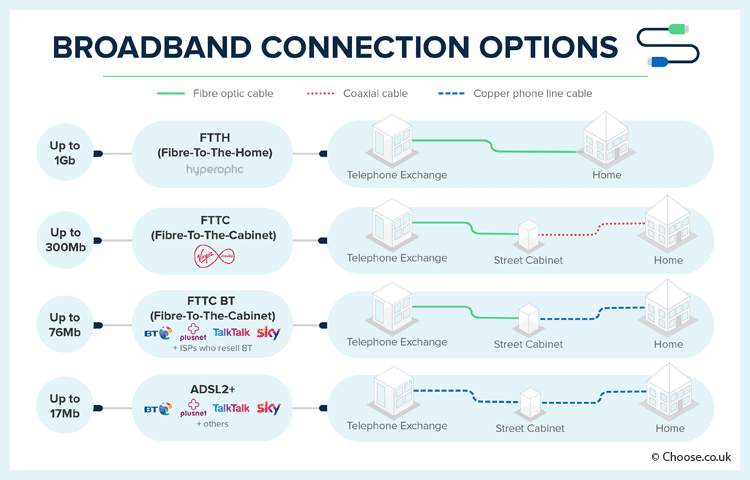
Copper phone lines are still used in older broadband connections such as ADSL and in part-fibre services that only use fibre as far as the street cabinet (FTTC).
Copper is less effective at carrying data than fibre, and speeds drop the further the signal has to travel. Where any part of the connection relies on copper, maximum speeds are lower and more variable.
Upgrading to full fibre, where available, removes these limits and delivers more consistent performance.
Distance from the street cabinet
On ADSL and FTTC connections, speed is affected by how far your home is from the street cabinet. This is due to signal attenuation, where the strength of the signal weakens over distance.
Cable and full fibre connections are much less affected by distance, as the connection runs directly into the property.
If you're a long way from the cabinet, upgrading to full fibre or a cable service - where available - is often the only way to achieve a significant improvement.
Router quality and capability
Most broadband packages include a router, but not all routers perform equally well.
More basic routers may struggle in busy households or built-up areas, particularly where many Wi-Fi networks operate close together. Newer routers tend to handle interference better, manage multiple devices more efficiently, and support newer Wi-Fi standards.
Testing speeds using a wired Ethernet connection helps separate issues with the broadband line from limitations in the router or Wi-Fi setup.
Wireless signal disruption
Wi-Fi performance inside the home is affected by building layout, walls, and neighbouring networks.
In modern homes, interference is more often caused by congestion from nearby Wi-Fi networks than by household electronics, particularly on the 2.4 GHz band. Newer routers and devices cope better with this, but performance can still vary depending on environment and time of day.
Again, testing wired speeds is the best way to confirm whether the issue lies with Wi-Fi rather than the broadband connection itself.
Phone line interference (ADSL / FTTC only)
On copper-based connections, unused phone extensions, internal wiring, or electrical interference can affect broadband performance.
Removing unused extensions and ensuring the router is connected correctly can help reduce noise on the line. These issues do not apply to full fibre connections.
Too many connected devices
Homes often have many devices connected at the same time, from computers and phones to TVs and smart home equipment.
While modern routers are designed to handle multiple connections, heavy simultaneous use can still cause congestion, particularly during peak hours.
If speeds improve when fewer devices are active, the issue may be local network congestion rather than the broadband line itself.
Internet demand at peak times
Network congestion can also occur beyond the home.
During peak periods - typically between late afternoon and late evening - many people in the same area are online at once. Providers have a finite amount of capacity to share, so speeds may dip at busy times.
This pattern is reflected in official broadband testing, including data published by Ofcom, which shows average speeds falling slightly during peak hours.
Multiple factors at once
In practice, slow broadband is often caused by a combination of factors rather than a single fault.
Some households may be limited by older connection types or distance from infrastructure, while others may be affected more by Wi-Fi coverage, router capability, or local congestion.
While many in-home issues can be improved with better setup or equipment, others can only be resolved by upgrading the underlying connection when faster technologies become available.
Summary: many ways to improve broadband speeds
Slow broadband remains a frustration for many households, but in some cases small changes - such as improving Wi-Fi setup, checking router performance, or reducing congestion at home - can make a noticeable difference.
Free steps like testing speeds properly and adjusting how your network is used are a good place to start, while modest upgrades such as better routers, mesh systems, or extenders can help in homes where coverage is the main issue.
However, not all problems can be fixed from inside the home. Some connections are limited by older technology, distance from infrastructure, or wider network congestion, and may only improve by upgrading to newer broadband services or switching provider.
When signing up for a new deal, it's important to check personalised speed estimates and minimum speed guarantees, so you know what to expect - and what options you have if speeds fall short.
Regular speed tests, combined with a clear understanding of where issues are likely to sit, can help you decide whether a simple tweak is enough or whether a bigger change is needed.